
 pl
pl  tr
tr  es
es  pt
pt  mn
mn  es
es  pt
pt How to Withdraw Skins from KeyDrop: Step-by-Step Guide
 Withdraw Skins
What Can You Withdraw on KeyDrop?
KeyDrop pays out in CS2 skins rather than direct cash. Whenever you open cases or earn rewards, your items safely land in your KeyDrop inventory until you are ready to move them over to Steam.
You can withdraw:
- CS2 skins from your KeyDrop inventory
- Active CS2 skins that are currently available for withdrawal
Just keep in mind that regular account balance cannot be withdrawn directly as cash.
Skins stored in the KeyDrop inventory for 90 days without any action are automatically sold, and their displayed value is transferred to the account balance.
KeyDrop Withdrawal Requirements
Before taking your items off KeyDrop, you need to meet a few basic conditions. Most delayed or failed transfers happen because one of these factors is missing or fails to be set up correctly.
- Your Steam account is properly linked
You need to connect a valid Steam account to your KeyDrop profile. Double-check that you linked the right Steam profile and pasted your Trade URL correctly. - Your Steam inventory is public
Set your Steam inventory visibility to public so KeyDrop can process the trade. Steam Guard Mobile Authenticator should also have been active for at least 15 days. - No Steam trade bans or restrictions
Your Steam account cannot have any active trade bans, limitations, or temporary holds. If your account has a community ban or a trade lock, you will not be able to receive items. - Item is active and available for collection
The skin must appear under the “Active” inventory filter and have the “Collect” option available. - Cooldown timers have expired
Some items or accounts get placed on a temporary cooldown. If that happens, you just have to wait for the timer to run out before requesting your skins. - Minimum account top-up completed
You must complete an account top-up of at least $2 before withdrawing skins. Having $2 in your current balance alone does not meet this requirement.
Since nearly all withdrawal errors come down to these rules, verifying them beforehand is the best way to guarantee a fast, smooth transfer.
How to Withdraw on KeyDrop: Step-by-Step
Check out how to safely pull your skins off KeyDrop without running into common mistakes, serving as a handy companion to the broader tips on KeyDrop.
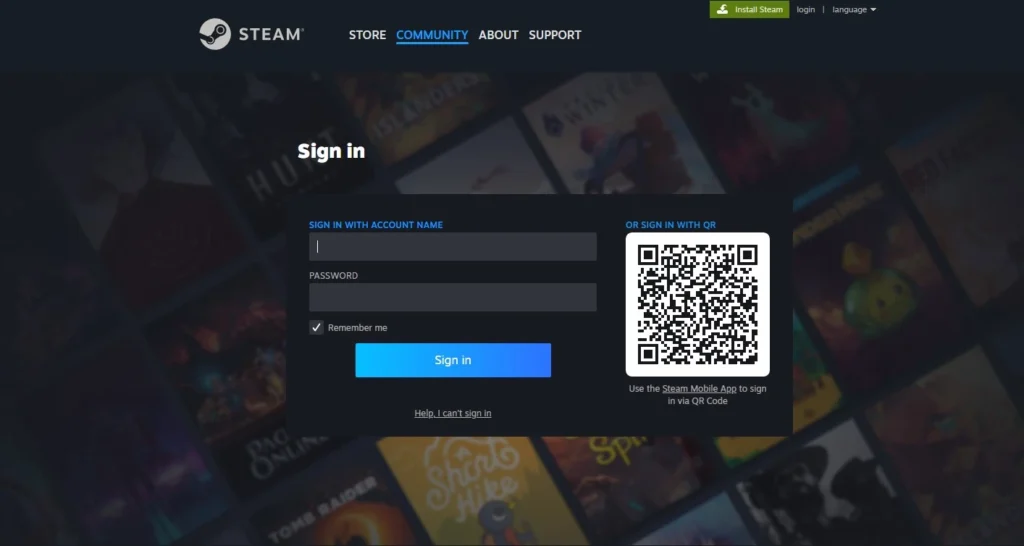
Step 1: Log In to Your Account
Sign in to KeyDrop and double-check that your Steam profile is properly linked.
Step 2: Open Your Inventory
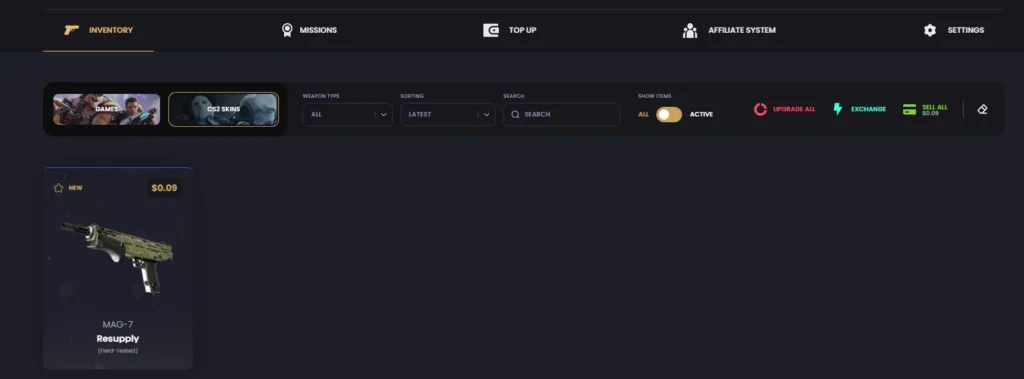
Open the “My Account” tab and find your KeyDrop inventory. Set the “Show items” filter to “Active” to display skins currently available for use or withdrawal.
Step 3: Choose Your Skins
Select an active skin that currently has the “Collect” option available.
Step 4: Submit the Withdrawal
Hover over the selected skin and click the “Collect” button. Follow the item status shown in your inventory.
Step 5: Accept the Steam Trade Offer
KeyDrop will send a trade offer to your Steam account. Open Steam and accept it to finish the withdrawal.
The skin will then appear in your Steam inventory.
For account funding rather than skin withdrawals, KeyDrop Gift Cards work as a separate prepaid top-up method.
How Long Do KeyDrop Withdrawals Take?
KeyDrop withdrawal time may vary depending on the skin status, item availability, and Steam account restrictions. After clicking “Collect,” check the item status in your inventory and accept the Steam trade offer when it becomes available.
Withdrawal Access Requirements
To access skin withdrawals, add a valid Steam Trade URL and complete an account top-up of at least $2. Use the “Active” inventory filter to check which skins are currently available for collection.
A KeyDrop Gift Card adds prepaid funds to the account balance, while a KeyDrop Golden Code provides Gold Coins for the Gold Area. Neither option changes these withdrawal requirements.
Common Withdrawal Problems and How to Fix Them
Whether you have any questions about cashing out your inventory or you faced some issues, check the most common ones before you contact customer support. This will definitely save you time.
Steam Trade Offer Not Received
Check that:
- Your Steam trade URL is correct
- You can receive trade offers
- Steam has not restricted your account
Withdrawal Button Is Disabled
This usually happens when:
- The skin is not currently listed as active or available for collection
- A trade cooldown is still active
- The item is currently out of stock
Trade Was Canceled
A trade may get canceled if:
- The item goes out of stock
- You do not accept the offer in time
In most cases, you can submit the withdrawal again.
Is It Safe to Withdraw on KeyDrop?
Using the official KeyDrop withdrawal process and carefully checking each Steam trade offer helps reduce the risk of trade errors or scams. KeyDrop sends items through Steam trade offers, so always check the details before accepting one.
- Follow KeyDrop’s withdrawal rules
- Accept offers only through Steam
- Avoid third-party tools, extensions, and suspicious links
These withdrawal precautions work alongside our broader account security measures designed to protect KeyDrop account activity.